Doing things in bulk
When you need to act on lots of records at once, you don't have to open them one by one. In your Contacts or Companies list, tick the rows you want and a set of bulk actions appears.
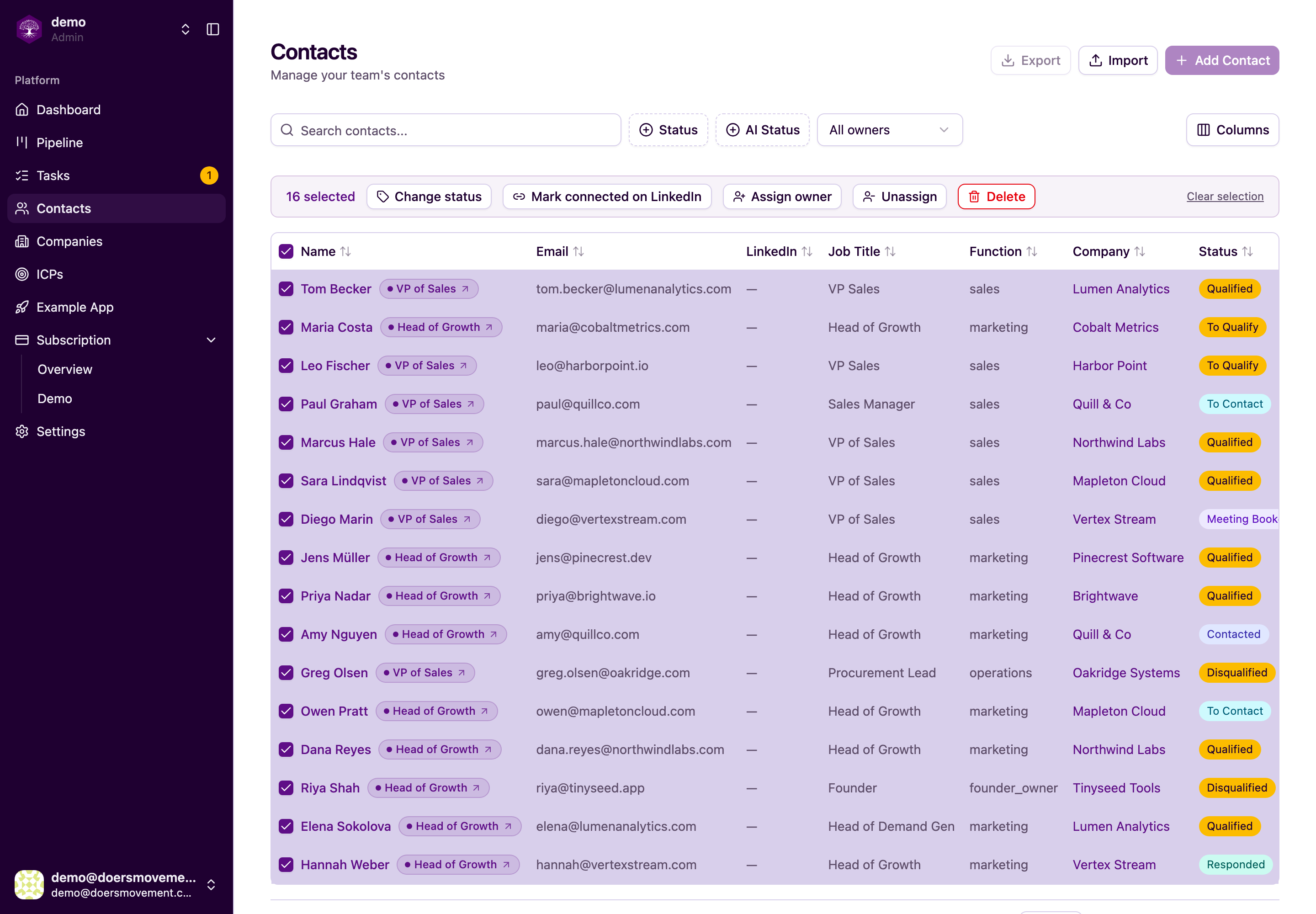
What you can do at once
Select several rows, then choose an action:
- Screen: have your AI Agent screen the selected people or companies against your ICPs, reading their LinkedIn first when it needs to. You see how many will be screened and what it costs before anything starts. See Possible Fit and screening.
- Change status: move many people or companies to a new stage together.
- Delete: remove the selected records.
- Assign an owner (admins): hand a batch over to a teammate.
- Set LinkedIn status (contacts only): record where you stand with them, or set them all to To connect so requests go out. With your LinkedIn account connected, that sends real requests — paced, and inside your daily limit, so a bulk action can't burst. See Connection requests.
More than one page? Tick the box at the top to select the whole page, then Select all N matching to take every record your filters and search show. Screen works on all of them at once (up to 600); the other actions work on the rows you tick.
How bulk runs behave
Bulk actions are careful, not blunt:
- Status changes run properly for each record, one by one. That means some may go through while others come back with a reason they couldn't (for example, a step that isn't allowed yet for that person). You see which succeeded and which didn't.
- You always get a count and a confirmation message so you know exactly how many records were affected.
Deleting always asks you to confirm first, so there's no accidental wipe. Assigning owners is admins only. See Ownership and permissions for who can do what.
Pair bulk actions with filters: filter your list down to exactly the right group first, select all, then apply the action. It's the fastest way to tidy up a large list.
For example, filter your list to a segment, select all, choose Change status, and pick "To Qualify" to ask the AI to qualify the whole batch at once. See Starting AI work.
Next
- Ownership and permissions: who can assign, delete, and edit
- Starting AI work: kick off research or qualification for a whole batch
- Qualify a batch at once