The Pipeline
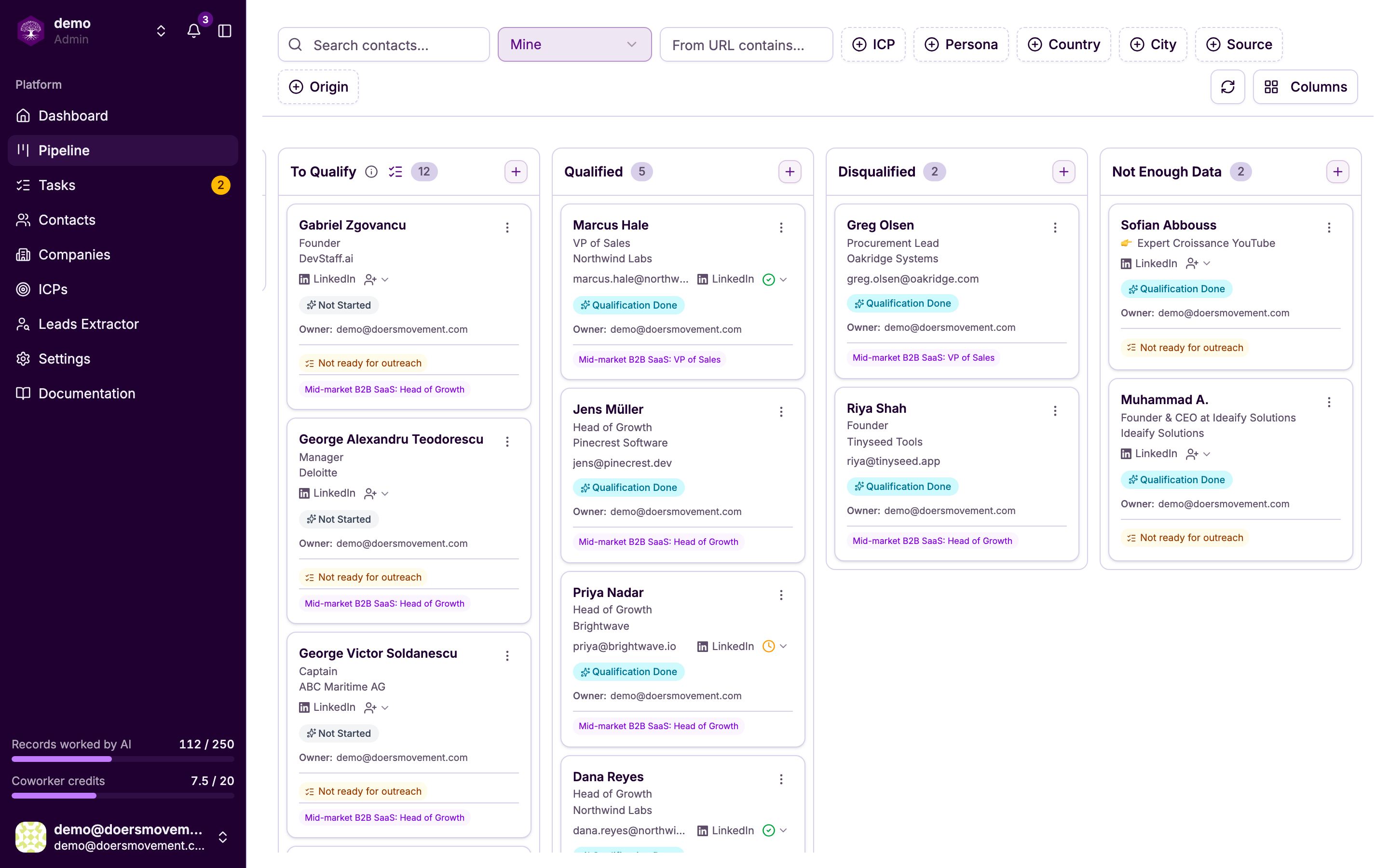
The Pipeline is a board view of your contacts, a visual way to see where everyone stands and to move them forward. Instead of a list, you get columns, and each person is a card sitting in the column that matches their stage.
How the board is laid out
Your contacts are organized into columns by stage, flowing left to right as a deal progresses: from To Contact, to Contacted, to Responded, to Meeting Booked, all the way to a final outcome. One glance tells you how healthy your pipeline is and where things are stuck.
Moving people along
To advance someone, just drag their card into a new column. That's it: the move is saved instantly.
Moving a card isn't only cosmetic. It can kick off the AI's next step for that person (for example, lining up the right follow-up), so keeping cards in the right column keeps the AI working for you.
Columns that start the AI
Possible Fit is not one of them. It holds people who could be a fit but haven't been fully qualified, and dropping a card there starts nothing and costs nothing. See Possible Fit and screening.
A few columns are special: dropping a card into one asks the AI to do that step (research, enrich, qualify, or draft an outreach message) for that person. These columns show a small AI marker so you can spot them at a glance. For exactly what each step does and what it needs first, see Starting AI work.
If you hide those columns in column settings, you lose the drag-to-start shortcut. You can still start the AI from a record's Status control: you just can't trigger it from the board.
Finding what you need
When the board gets busy, narrow it down:
- Search for a specific person, or for a role: the search looks at names, emails, companies, job titles, and LinkedIn headlines, just like on your Contacts list.
- Filter by qualification (Qualified, Disqualified, or Insufficient data) to focus on the right people.
- Filter by ICP or company status to see only the deals at the companies that matter right now, for example everyone at a Qualified company in one ICP. The ICP filter includes people whose company qualified for it, even before you've qualified them.
- Filter by owner (admins): the board opens on All owners, so you see the whole team's pipeline at a glance. Choose Mine to focus on your own deals, or one teammate to review their pipeline. The owner box sits right next to the search, and it's highlighted whenever it's narrowing the board.
What you can do on a card
Each card is a small control center for that person. You can:
- Assign an owner (admins): hand the deal to the right teammate.
- Open their details: jump straight to the full contact page.
- View their activity: see what's been happening recently.
Make the board match how you sell
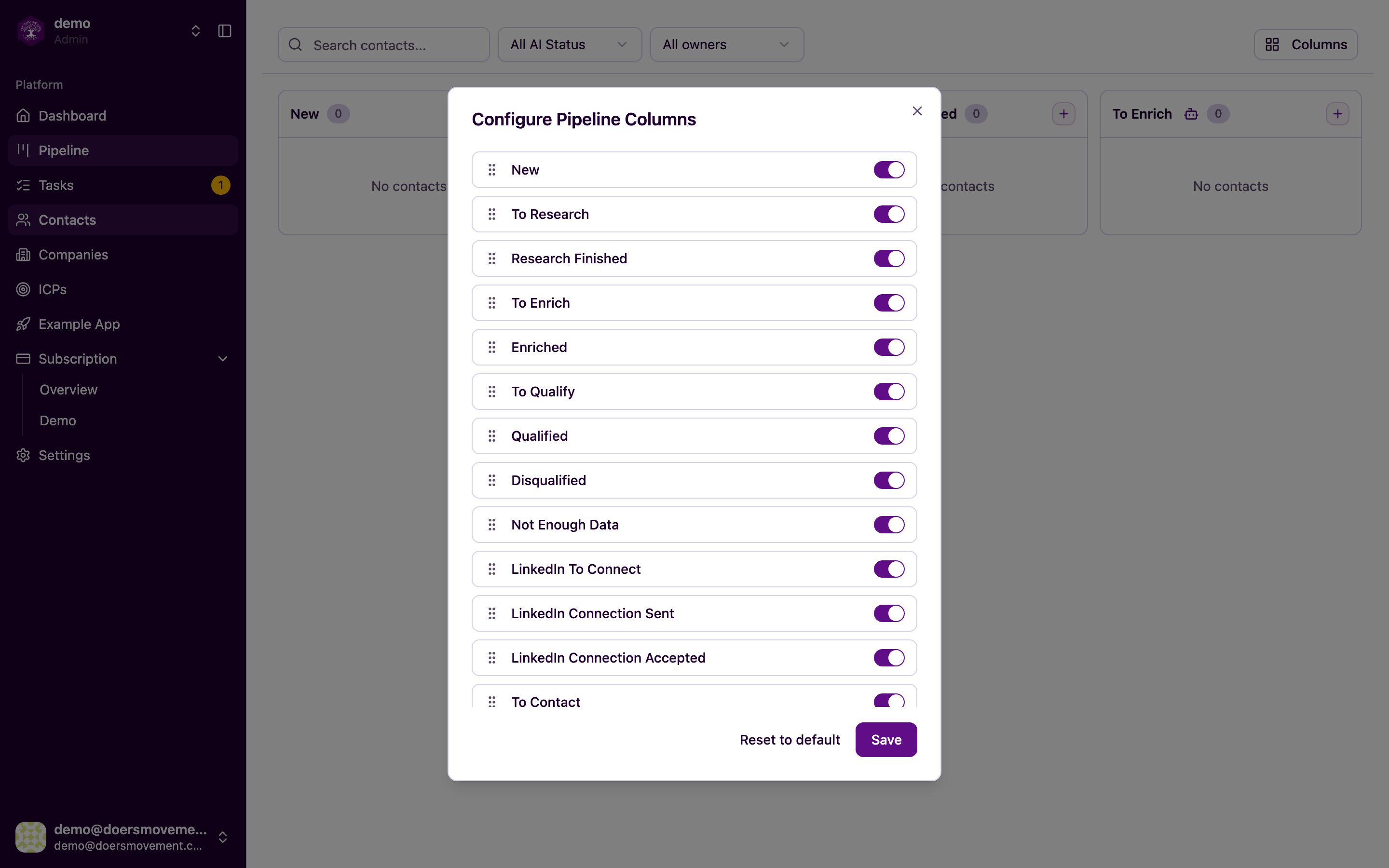
Every sales motion is different, so the columns are yours to shape. You can show, hide, and reorder stages until the board mirrors the way your team actually works. Hide stages you don't use; reorder them to match your real flow.
A new board starts with the stages you work in every day, left to right: New, Possible Fit, To Qualify, Qualified, To Contact, Contacted, Responded, Not Responded, Meeting Booked, Pending, Demo, Offer, Paying, Not Now and Lost. Stages where people simply stop (Disqualified, Not Enough Data, Could Not Contact, Churned, Do Not Contact and Archived) start hidden, so they don't crowd the board. Switch any of them on whenever you want to see who's there. Reset to default in column settings brings back this starting board at any time, and when we add a new stage it arrives hidden, so your board never changes without you.
Owner filtering and assigning owners on cards are admin abilities. See Ownership and permissions for who can do what.
Next
- Outreach: send the right message at the right stage
- Contacts: the full detail behind every card
- Starting AI work: what each AI step does
- Statuses & the AI lifecycle: how stages and the AI fit together