Statuses and the AI lifecycle
Every contact and company in Doers Movement tracks two separate things, and the benefit is control: the AI working quietly in the background never moves your deal without you knowing.
- Your status: where you've placed this deal in your funnel. You're in charge of it.
- The AI's progress: what the AI has finished on this record so far, shown as a small badge.
These never overwrite each other. Your funnel status is yours; the AI badge only reports on its own work.
Your funnel statuses
These are the stages a deal moves through. You set them: drag a card, pick from a menu, or ask your AI Agent to move it.
A few moves also happen for you:
- A message you send or log in Doers Movement moves someone to Contacted, and their reply then moves them to Responded.
- Once you've sent someone every follow-up your outreach settings allow and they still haven't replied, they move to Not Responded, so your Contacted column only holds people who may still answer. This happens once a day, after the last follow-up has had its usual gap to get a reply. If they answer later, they move to Responded; if you write to them again, they go back to Contacted.
Chatting with someone directly on LinkedIn never moves them on its own, and those chats don't count as follow-ups either: see Messages and replies.
| Group | What it means |
|---|---|
| Early | The deal is new, a possible fit worth a closer look (Possible Fit), or ready to contact (To Contact). |
| Working it | You're actively in motion: Contacted, Responded, Not Responded (your follow-ups ran out), Meeting Booked, and the later working stages. |
| Outcome | The deal has settled: won (Paying), paused (Not Now), or closed out (Lost, Churned for a customer who left, Archived). |
| LinkedIn sub-track | For outreach that starts with a connection request: Not connected → To connect → Request sent → Connected. It's tracked per teammate, and with a connected LinkedIn account it moves on its own as requests go out and get accepted. See Connection requests. |
Possible Fit and screening
A big network is hard to work through by hand. So your AI Agent screens new contacts: a quick, free check against your ICPs that points you to the people most worth your time, before you spend anything on full qualification. Screening is free and quick; qualification is the full check, and the one that uses credits.
- Possible Fit is where it puts people who could be a fit for you. It's a first impression, not a verdict: run the full qualification to confirm. Your AI Agent only moves someone here once it has read their LinkedIn profile and their company is a possible fit too, so your Possible Fit list only holds people at companies worth your time. For someone with no LinkedIn profile, their job title is what it goes on. You can also move someone here yourself, and they stay until you move them.
- Not decided yet means screening couldn't tell yet. It never means "not a fit". Usually your AI Agent reads their LinkedIn profile next, which is enough to decide. The reason shows what it's waiting for:
- Company waiting for screening or Company not confirmed: the person may fit, but their company hasn't been confirmed as a fit yet. As soon as it is, they're screened again on their own.
- No company linked: your AI Agent can't tell yet whether they work somewhere you target, so it keeps them in New. If they have a LinkedIn profile, it reads it to find where they work now, then screens that company. This is how a LinkedIn network or an imported list with no companies gets sorted. Without a LinkedIn profile, link their company yourself.
- Company has no LinkedIn page: your AI Agent can't tell whether the company is one you target, so it keeps them in New and spends none of your LinkedIn reads on them. Add the company's LinkedIn page, or move the company to Possible Fit yourself, and they're screened again automatically.
What reading a profile means. Your AI Agent reads the roles the person holds today on their LinkedIn profile, links the company they work for, and decides whether one of those roles matches a persona you target. It saves you opening profiles one by one to find out who actually does the job you sell to.
Screening is free. Every plan screens a set number of new contacts and companies each month at no cost (a trial gets one set for the whole trial), most promising first. That means people whose LinkedIn profile was just read go first, then people at companies already in Possible Fit, Qualified or Contacted, then people whose company hasn't been screened yet (their company is screened first), then everyone else. So your free screening and reads go to the people most likely to matter. When free screening is used up, nothing is lost: new arrivals wait for you, and the card says what happens next.
- On a paid plan, it says Free screening is used up this month and starts again on the date it resets. You can still qualify anyone in the meantime: screening runs first, so a clear misfit costs you nothing, and only real candidates get the full check, with its credits shown before you click.
- On a trial, it says Your free screening is used up, and Pick a plan keeps screening your new contacts and companies.
See where screening stands. Open a contact who isn't qualified yet: the top of their Not qualified yet card says, in one line, what your AI Agent made of them and why. It names the role, the persona and the company it went on, for example "CTO & Co-Founder matches your 'Technical founder' persona", "SignalFisher has 67 employees; your ICP allows 2–50", or "Dan has no job title or headline to go on, so your AI Agent will read their LinkedIn profile to decide". When it says Your AI Agent is checking SignalFisher first, the person's role looks like a match and it is screening their company before it moves them, usually within minutes. It also tells you when screening is still on its way, or why it can't happen yet (for example, when you have no active ICP with an active persona). As soon as you have one, your AI Agent screens everyone already waiting in New, on its own, so nobody you added earlier is left behind. So you know what happened before you spend anything, and what to do next:
- Read LinkedIn profile has your AI Agent read that person's profile right now. It's free while this month's free LinkedIn reads last. After that the button shows its price, for example Read LinkedIn profile · 1 credit, so you only pay when you decide someone is worth it. Opening a contact never starts a read on its own, so you decide who goes first. They're screened again with what it found within a few minutes.
- The main button, for example Qualify anyway or Qualify to decide, runs the full qualification. It shows what it costs, such as "· 4 credits", before you click.
- If this month's profile reads are used up, the card says when they start again and offers Upgrade plan to get there sooner.
Screen the people worth a look. Filter your Contacts list down to the people you care about, tick them (or use Select all N matching to take everyone the filters show, up to 600 at a time) and choose Screen. Before anything starts, a window tells you how many will be screened, who is left out and why (for example, people already past screening), and what it costs: nothing while this month's free LinkedIn reads cover the profiles it needs to read, and the price on the button after that, for example Screen 50 contacts · 30 credits. So you spend your reads on the people you picked, not on everyone at once. You can also ask your AI Agent to screen the people you name: it tells you the price first and only goes ahead when you say yes.
One line on the timeline. Each screening that changes something leaves one line on the contact's timeline saying what it decided and why, for example "Screening: possible fit. CTO & Co-Founder matches your 'Technical founder' persona." or "Screening: not a fit. SignalFisher has 67 employees; your ICP allows 2–50." Older lines may still start with "First look", the name this step used to have. So when someone moves, you can always see why.
Setting someone aside. If someone in Possible Fit isn't for you, move them back to New. Your AI Agent remembers that you set them aside and stops suggesting them, so your Possible Fit list stays the people you'd actually talk to. It only brings them back when they really change: a new company, a new seniority or role, or a new ICP you switch on that they fit. When that happens they return to Possible Fit on their own, and their timeline says why, for example "Maria became CTO at Beta, and now looks like a fit for your 'B2B SaaS founders' ICP." A reworded LinkedIn headline or an edit to an ICP you already had doesn't bring them back. Do Not Contact stays the permanent no: your AI Agent never looks at those people again.
Companies are screened too, on their industry, size and headquarters country. When a company is clearly outside your ICPs, its people show Company not a fit. See How your AI Agent screens companies.
Qualify starts with free screening. When you qualify someone your AI Agent hasn't screened yet, it screens them before anything else, reading their LinkedIn profile if it hasn't yet. If screening clearly says they're not a fit, they're Disqualified at screening, with the reason, for example "SignalFisher has 67 employees; your ICP allows 2–50", and no credits are used. Everyone else goes on to the full qualification. So you only pay for a full check on people free screening can't rule out.
Want the full check anyway? A person or company disqualified at screening shows Qualify in depth anyway, with its price, for example Qualify in depth anyway · 4 credits. It always runs the full qualification. To see everyone ruled out this way, filter your list by Qualification → Ruled out at screening.
Before you qualify. You can send anyone already screened to To Qualify, whatever screening said, and the full qualification always runs. If screening didn't think the person was a fit, you'll see a short note when you choose To Qualify, for example "Your AI Agent doesn't think this is a fit (role doesn't match). Qualify anyway?" It's there to save you a qualification you may not need, never to stop you.
When screening runs again. When you change what your AI Agent matches people against, it screens everyone still in New or Possible Fit again, on its own, over the next hours. That means a persona's title, the other titles it goes by, its seniority or function, an ICP's description, or switching an ICP or persona on or off. Changing an ICP's industries or company size screens your companies again, and the people at any company whose verdict changes follow. Renaming an ICP or persona doesn't count: the people it fits stay the same. People who didn't fit yesterday can fit a new ICP today, and you don't have to ask. To screen specific people again sooner, select them on the Contacts page and choose Screen, or ask your AI Agent. Screening them again is free when their profile was already read. If nothing about the person or your ICPs changed, expect the same result. People you set aside are left out: move them back to Possible Fit yourself to bring them back.
Before a contact can go to To Contact
Moving a contact to To Contact is what hands them to the Message Writer. Before it accepts one, it checks there is somewhere to actually send the message — which saves you from a finished draft you can never send.
A contact is ready when both of these are true:
- They're matched to a persona. That's what the message gets written from: their role, the problems they feel, the language they use.
- You have a way to reach them — a working email address, or a LinkedIn connection that has been accepted.
If one is missing, the move is refused and you're told which, by name: "Samir has no way to reach them. Add an email, or mark them as connected on LinkedIn." Alongside it is an Open Samir link that takes you straight to the contact, so you can fix it and try again without hunting for them.
Two ways to fix it:
- Add or correct their email on the contact page. An address we've found to be invalid doesn't count as a way to reach them.
- Mark the LinkedIn connection as accepted. A request you've sent but they haven't answered isn't a channel yet — see Connection requests.
The same rule applies however you start the work: dragging the card, the status menu, the Generate message button, or asking your AI Agent to do it. You'll get the same explanation and the same way out each time.
Moving a card to To Contact always moves it. If a draft is already waiting for that person, or your spacing between messages says it's too soon, the card still moves and the contact's timeline tells you why no new draft was written.
AI-stage statuses
Setting one of these hands the work to the AI. Each one asks for a specific step.
| Group | What it means |
|---|---|
| Research | To Research asks the AI to look the prospect up; the badge shows it finishing. |
| Enrich | To Enrich asks the AI to fill in missing details. |
| Qualify | To Qualify asks the AI for a verdict (the result lands as Qualified, Disqualified, or Not Enough Data). |
Companies work the same way, with one extra status, Active, for a business you've decided to pursue.
The AI progress badge
This little badge tells you, in plain terms, how far the AI has got:
| Step | What you'll see |
|---|---|
| Nothing running | Idle |
| Screening (contacts and companies) | Waiting for screening, Screening, then Screened |
| Looking things up | Researching, then Researched |
| Filling in details | Enriching, then Enriched |
| Checking qualification | Qualifying, then a verdict: Qualified, Disqualified, or Insufficient data (not enough info yet) |
| Drafting outreach (contacts only) | Writing message, then Draft ready |
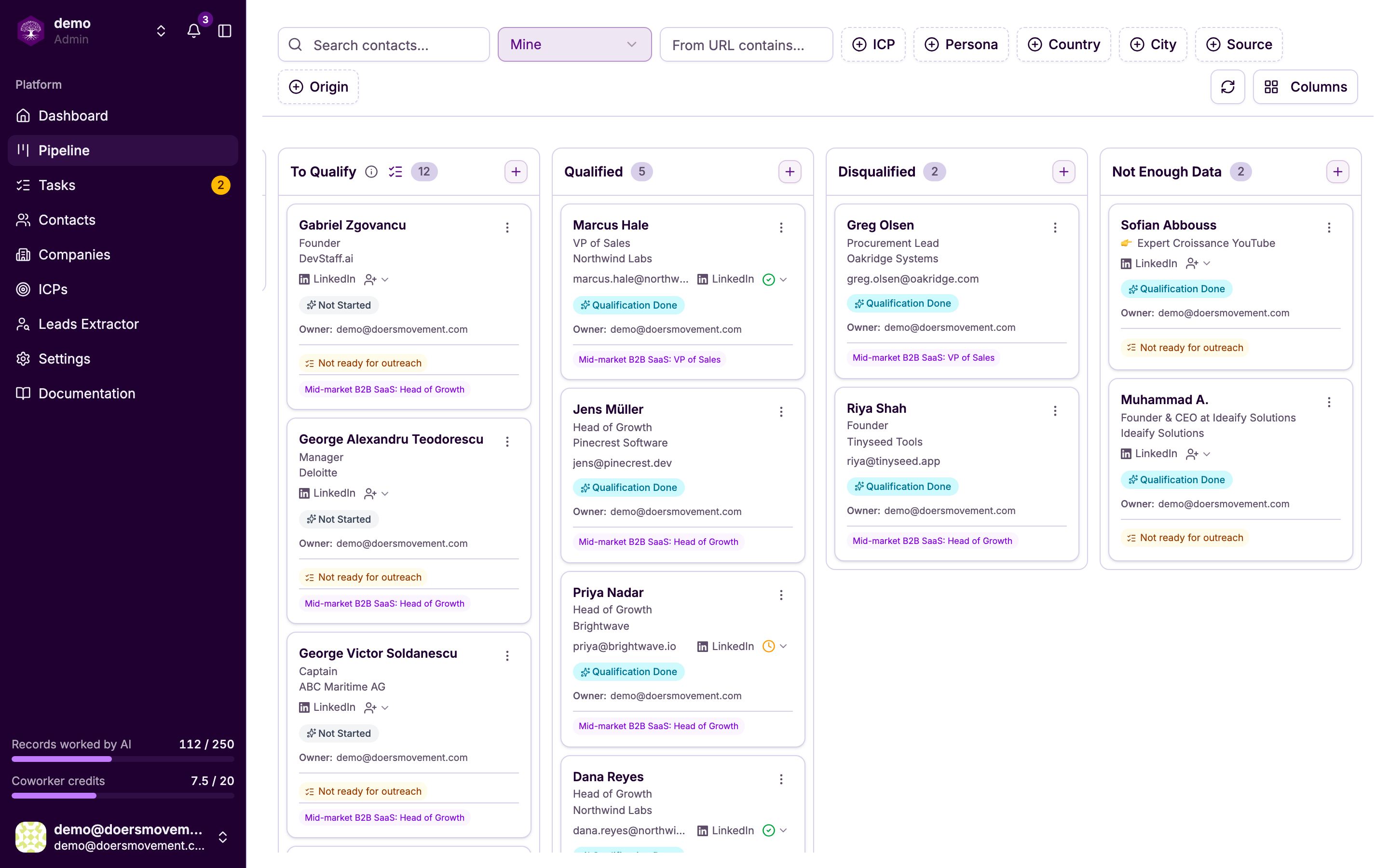
What happens when you start an AI stage
Move a record into an AI stage and the matching AI step kicks off. You'll watch the badge change from "in progress" to done, the result appears right on the record, and a Timeline entry is written so there's always a record of it.
If enrichment can't finish, the record goes back to where it was, so it can be tried again, and you aren't charged for it.
Every charge adds its own line to the record's Timeline saying what it found and what it cost, for example "Email found · 1 credit", so you can always see what your credits bought.
See Starting AI work for the step-by-step.
The steps don't chain by themselves. Finishing research won't automatically start enrichment, and so on. You move it to the next stage when you're ready, or just ask your AI Agent to do it.
Everything lands on the Timeline: every status change and every AI step is logged there. Your screens update live as it happens, so there's no need to refresh.