Draft and send a message
What you'll get: a personalized message you reviewed and sent, logged to the contact.
Steps
-
Trigger a draft. Move a qualified contact to To Contact, or ask your main AI Agent to draft a message. The Message Writer grounds every draft in real research about the person and their company, with no generic templates.
-
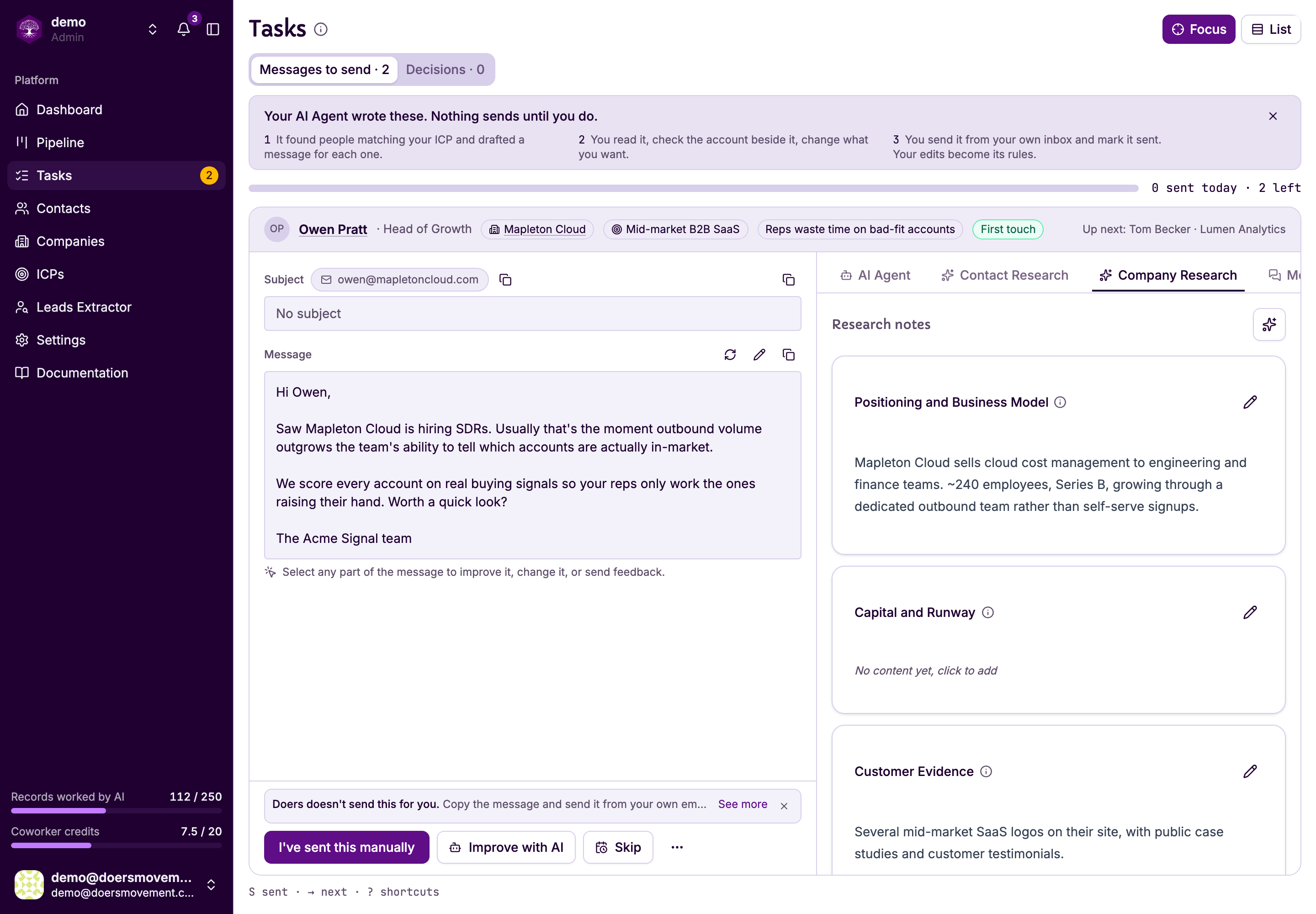
Open Tasks. Your draft is waiting on the Messages to send tab, with the research about this person beside it.
-
Read it, reshape it, send it. Tweak the wording until it sounds like you and press Save changes, or use AI Refine to tell your AI Agent what to change. Then send it and press I've sent this manually — or Send to LinkedIn if your account is connected.
Not the right moment? Skip them, pick how long to wait, and they come back to your queue then.
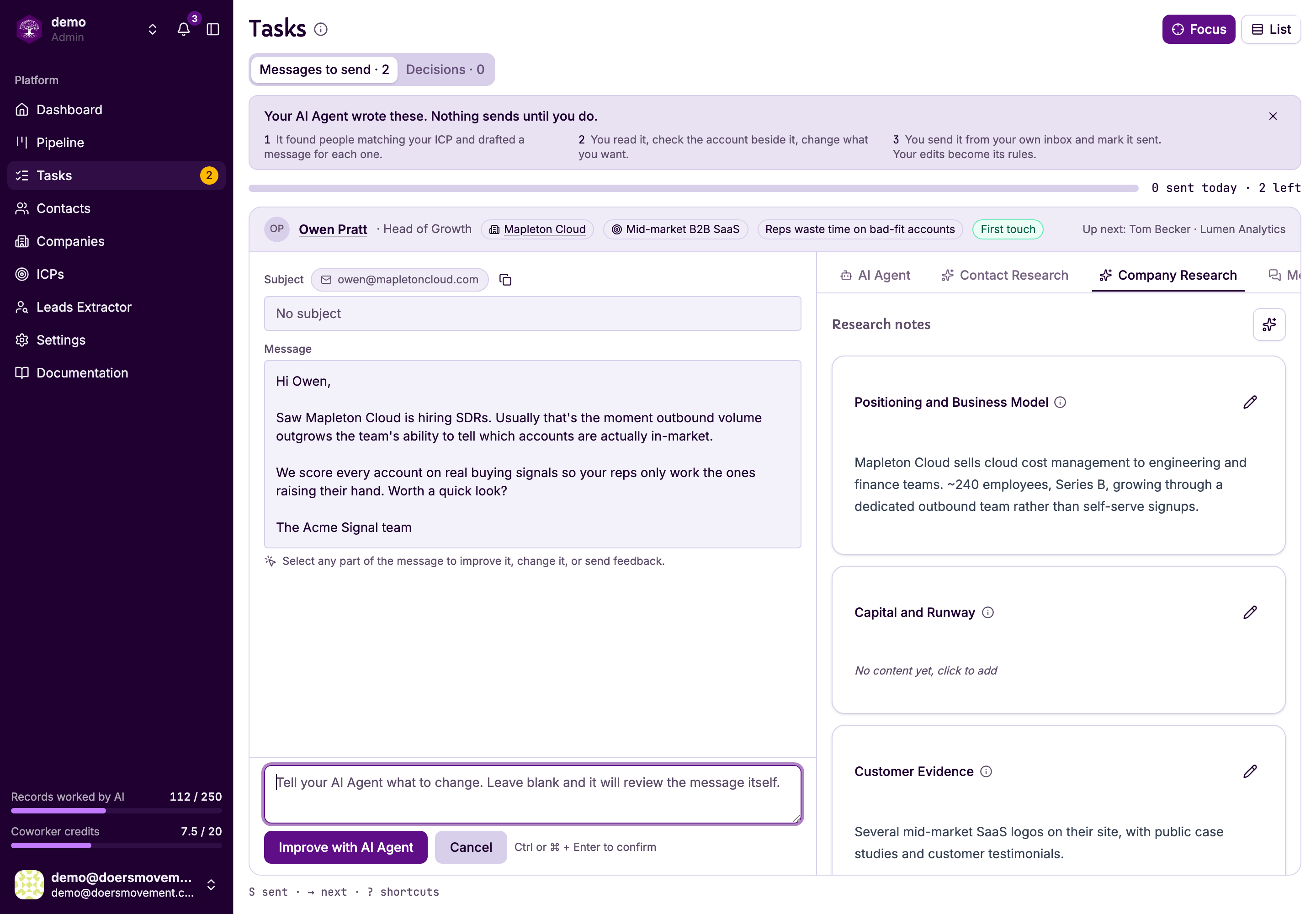
You'll know it worked when… the message is saved to the contact's conversation and timeline, and the next draft appears.
Clearing several at once? Press S to mark sent and → for the next one. ? shows every shortcut.
Your AI Agent never sends on its own. For email you always send from your own inbox; connecting LinkedIn lets Doers send from your account, inside your working hours.