Import a lead list (CSV)
What you'll get: your spreadsheet of prospects, cleanly imported and de-duplicated.
Steps
-
Open Contacts → Import.
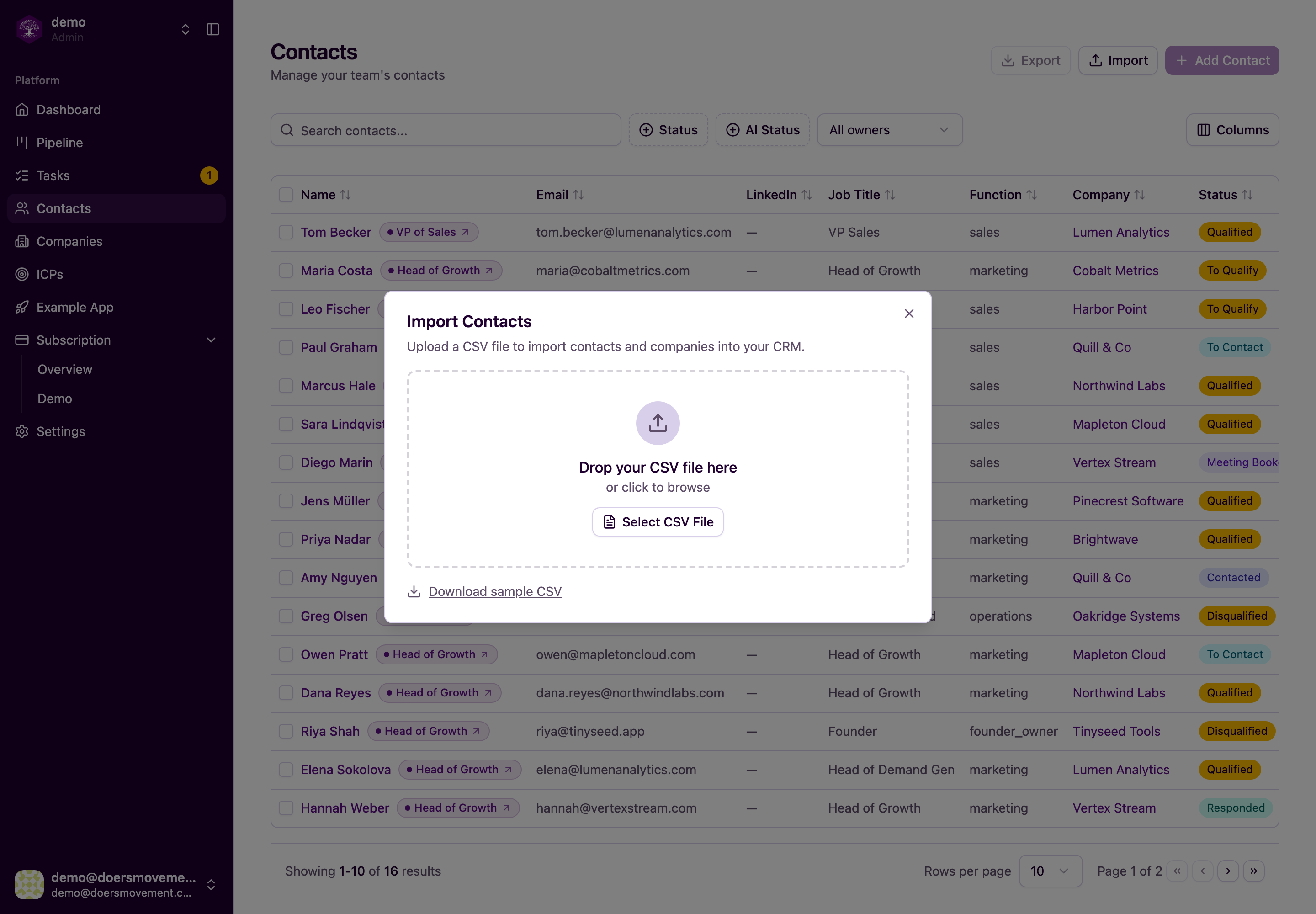
-
Upload your CSV. You only need two things per person: a first name and an email or LinkedIn link. Add the company's website (or domain) as well as its name and we'll attach the company for you. A name alone isn't enough to tell businesses apart. If everyone on the list plays the same buying role, you can assign them all to one persona up front.
-
Match your columns and choose who works the list. Admins pick a teammate under Assign Owner: they'll own every person on the list and every new company it adds. Leave it on Unassigned to put the whole list in the shared pool for anyone to pick up.
-
Click Start Import, then watch the live progress. Each row gets its own result (imported, skipped, or failed with a plain-English reason) so you always know what happened.
We tidy up for you as we go. People are matched on email first, then LinkedIn; companies are matched on their LinkedIn company page or website, never on name alone. When someone already exists, we keep what you've got and only fill in the blanks, so nothing gets overwritten.
You'll know it worked when… the imported people show up in your Contacts list.
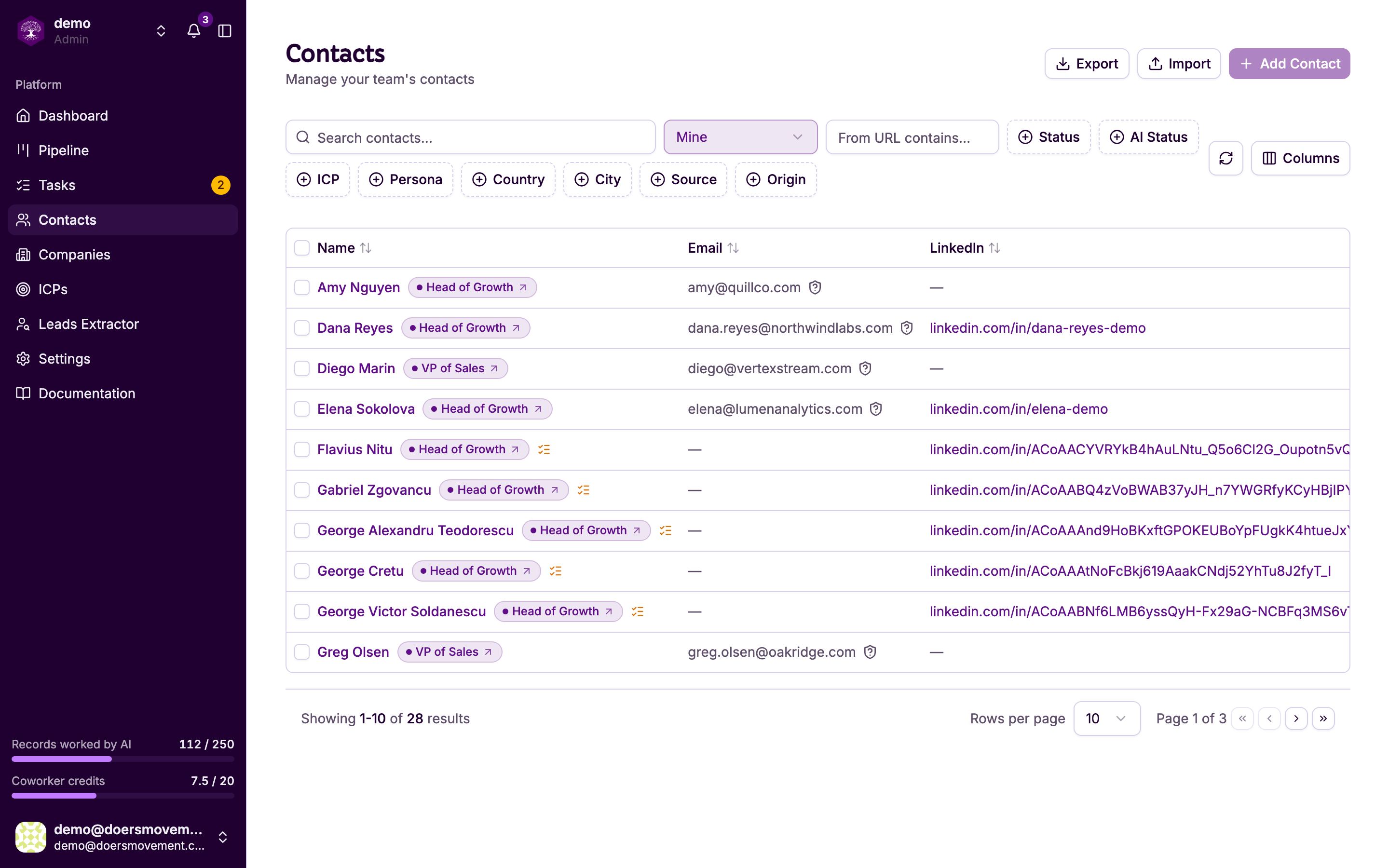
Use a normal CSV with a header row in the first line. Big lists keep processing in the background, so you can carry on working.