Review what your AI Agent wants to change
What you'll get: every change your AI Agent proposed is either saved (as it wrote it or in your words) or turned down with a reason it learns from.
Your AI Agent keeps learning while it works: how you write, what makes a persona start looking, what your customers struggle with. Before it changes anything it knows, it asks you. That keeps your targeting and your writing style yours.
Steps
-
Open Tasks → Decisions. Changes are grouped by where they land: Your profile, each ICP by name, Problems, Companies & contacts and Your company. Under each title you see exactly where the change goes. The coloured dot is the persona, in … is the group the information belongs to, and Affects … tells you a problem is shared by several personas.
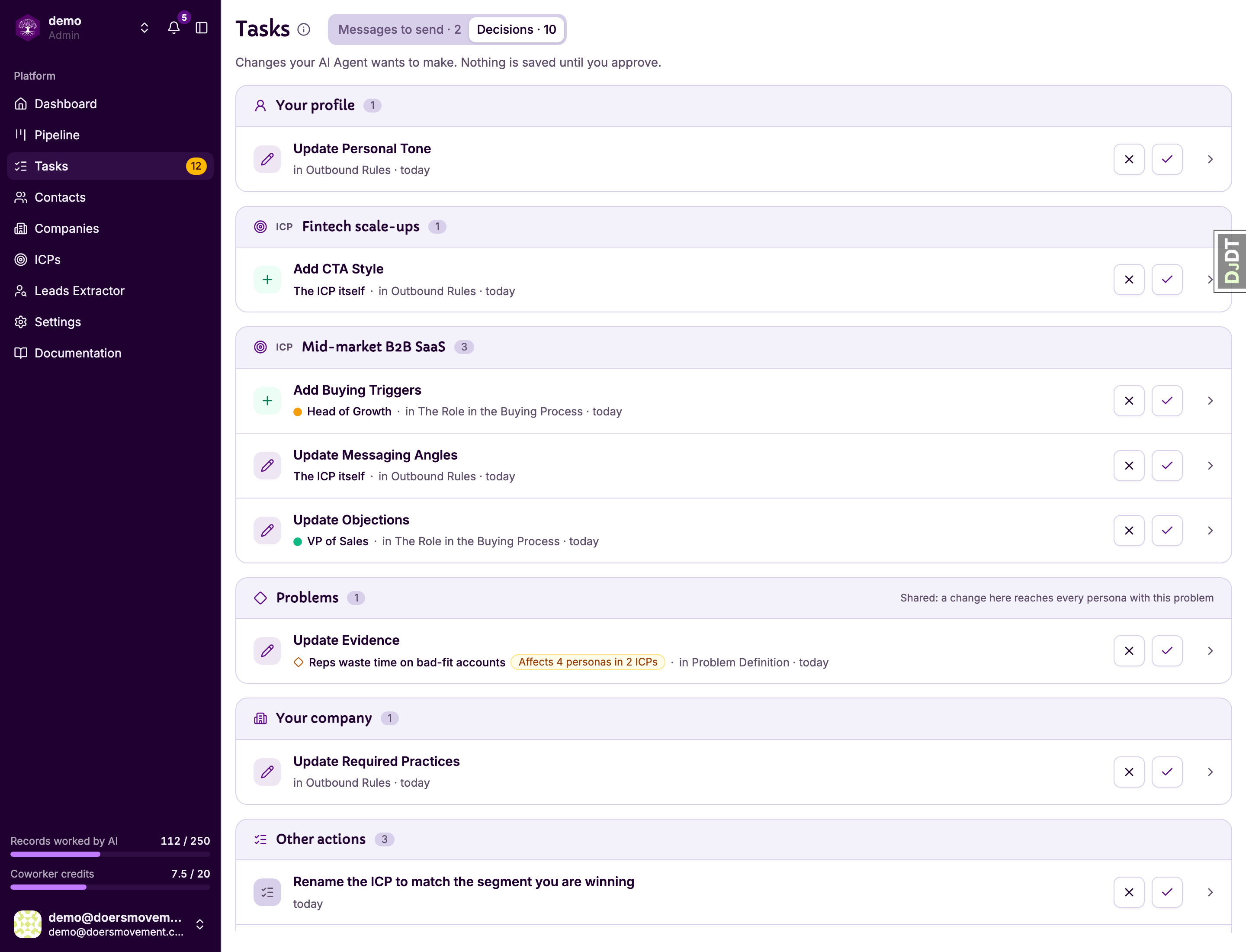
Already sure? Use the check mark to approve or the cross to dismiss, straight from the list.
-
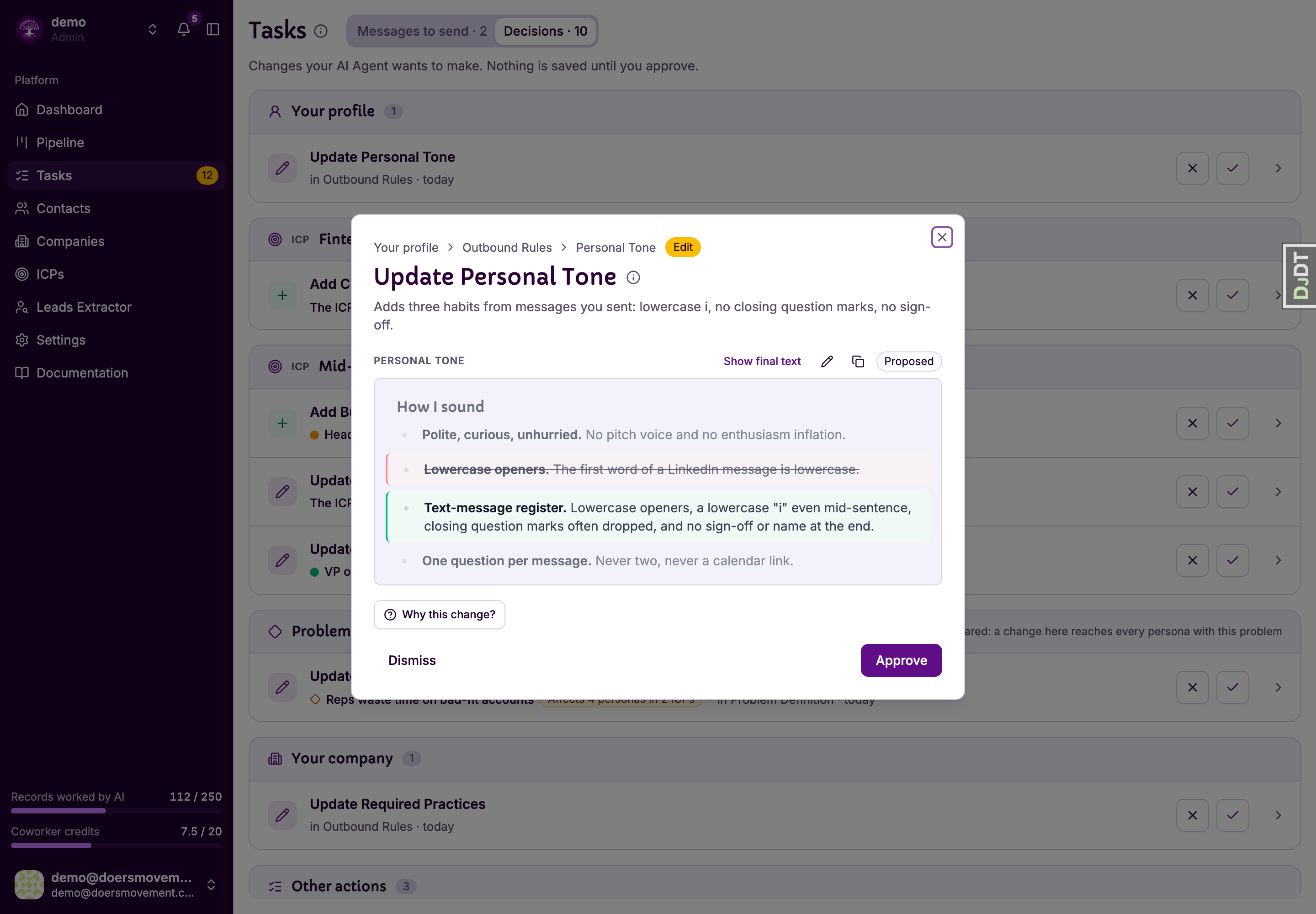
Open a change to see it. New lines have a green bar, removed lines are struck through with a red bar, and a line with only a few words changed shows those words highlighted. Parts that stay the same are folded away; Show … unchanged lines brings them back. The i next to the title explains what that piece of information is used for.
-
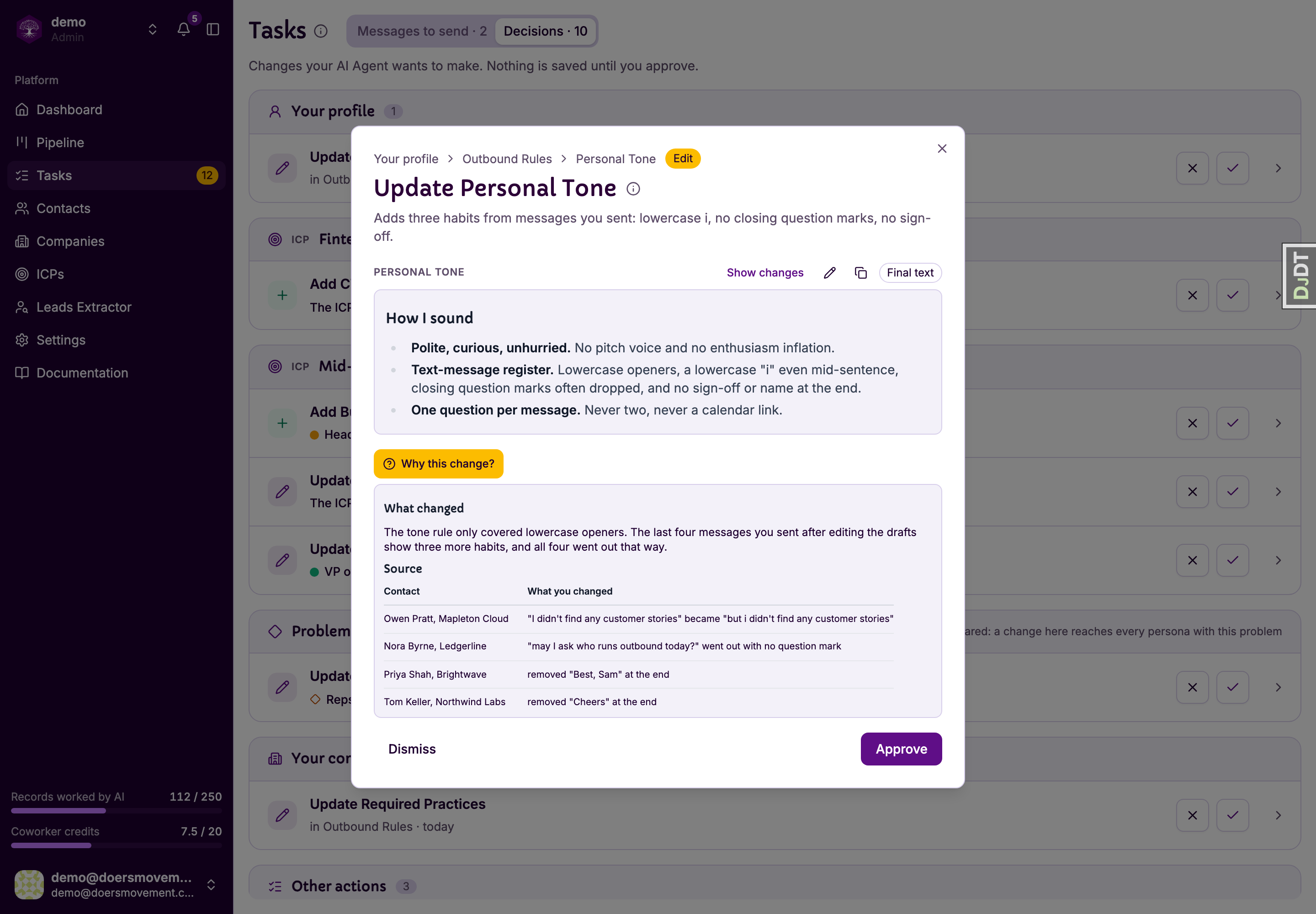
Look closer if you need to. The line under the change, such as Based on 4 messages across 4 contacts, tells you what the suggestion rests on; click any of the sources to read it and open the contact. Show final text shows how it will read once saved. Why this change? gives the full reasoning, and its numbered badges open the source behind each fact.
-
Decide.
-
Approve saves it right away.
-
Almost right? Press Edit before approving (the pencil), fix the wording in place, then Approve my version. Your AI Agent is told what you changed, so its next suggestion sounds more like you.
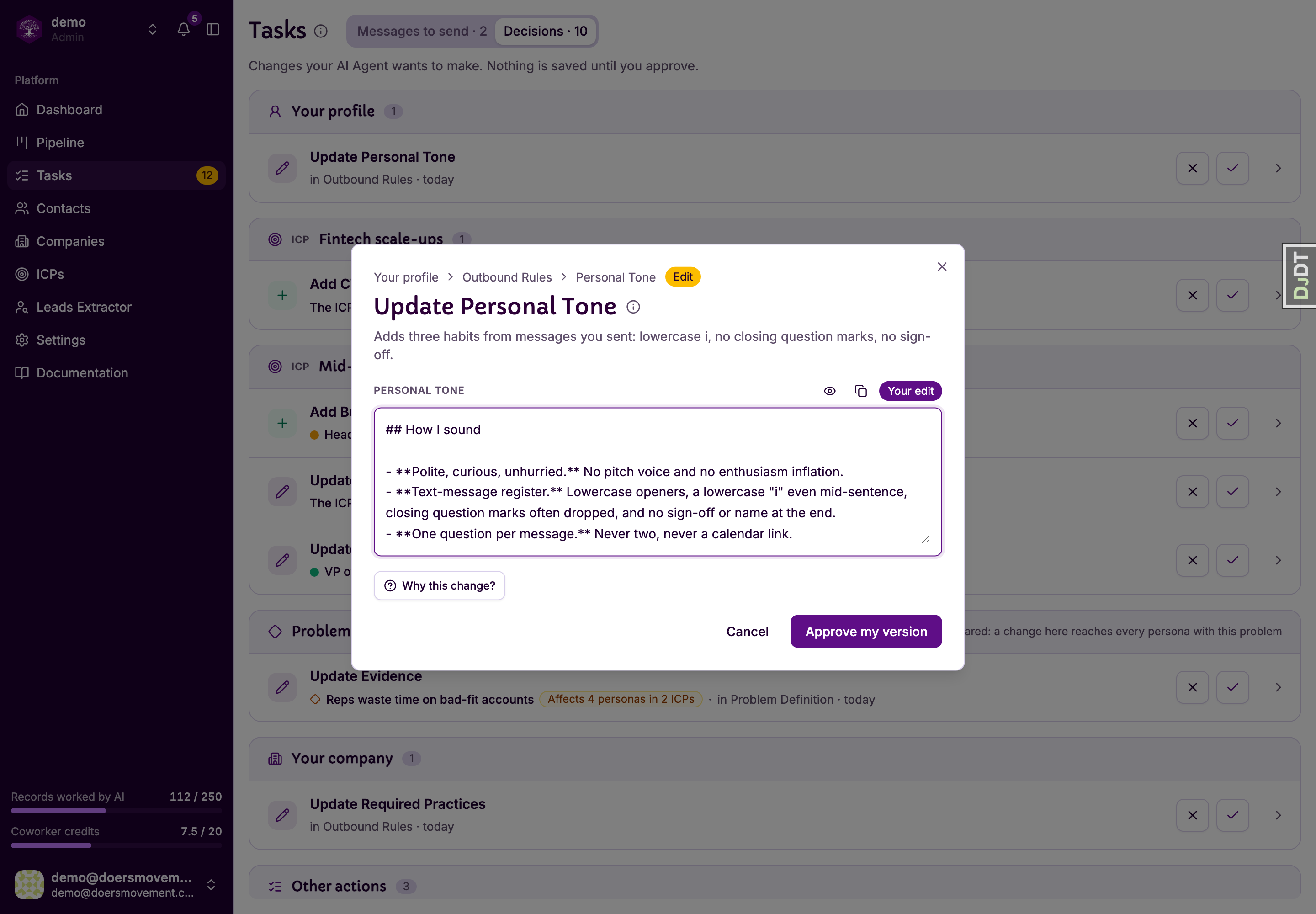
-
Not right? Press Dismiss, pick a reason or write your own, then Dismiss change. Nothing is saved.
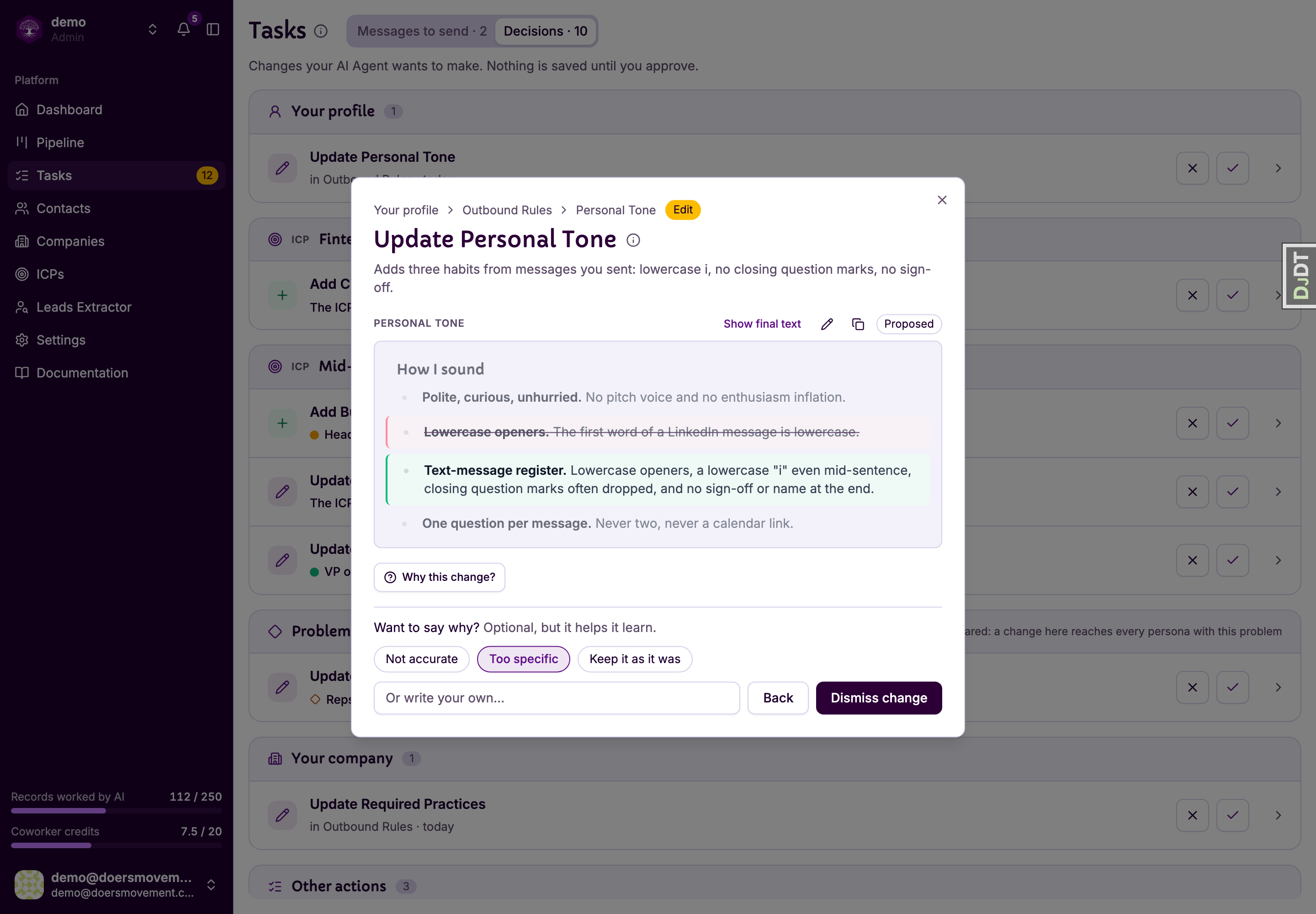
-
-
Keep going. After you decide, Next opens the next change waiting for you.
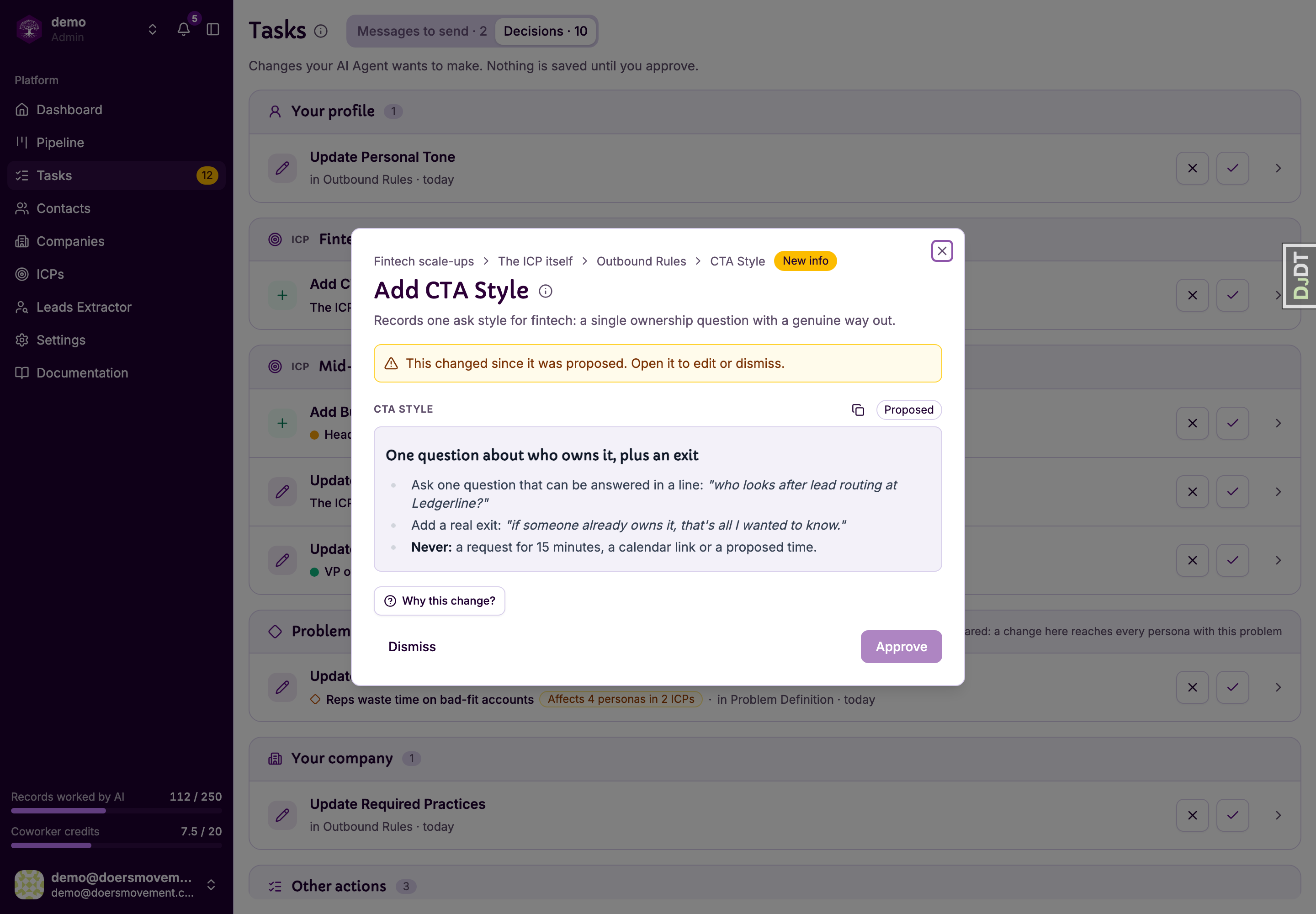
New information looks the same, with the proposed text shown in full instead of a comparison:
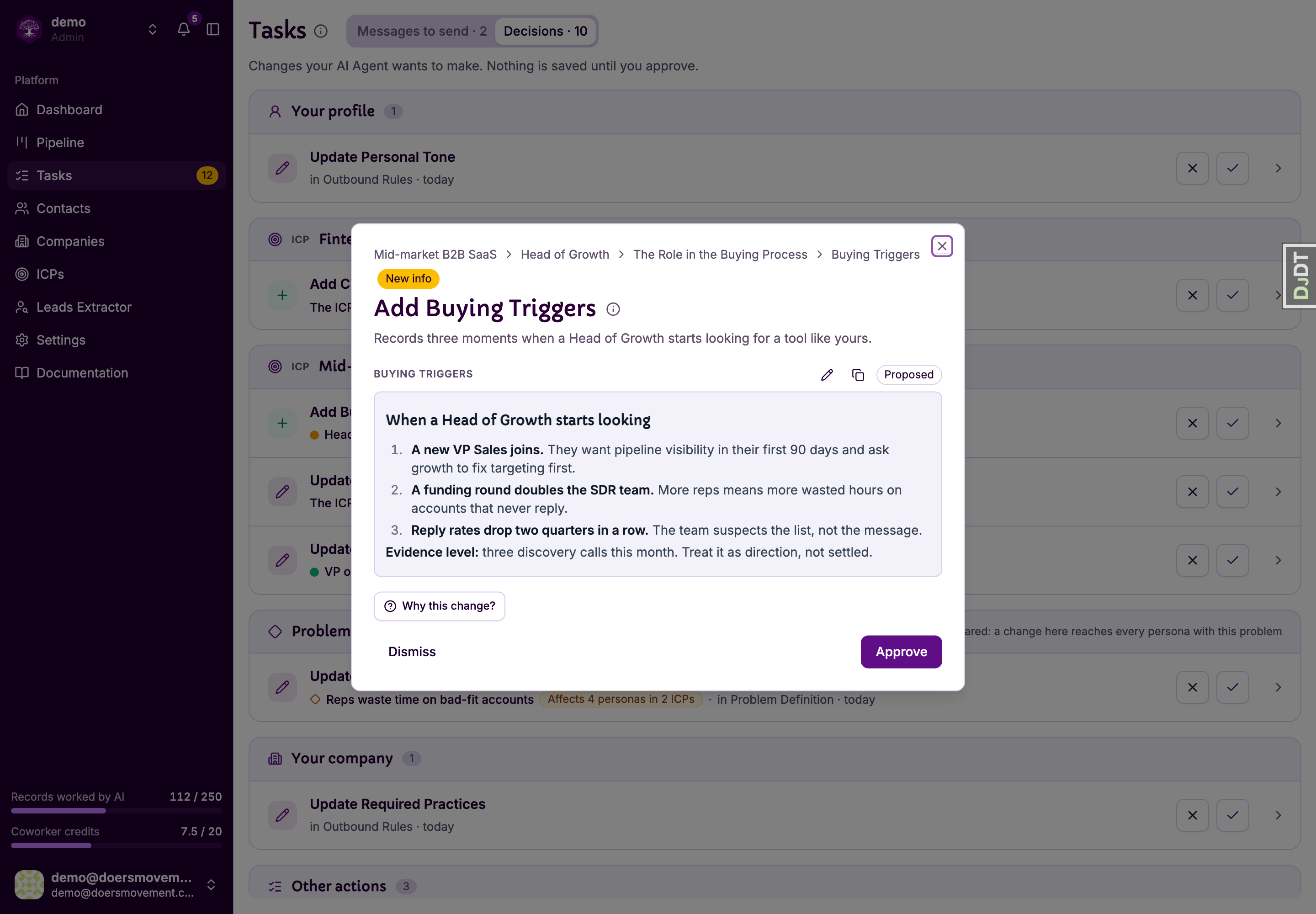
You'll know it worked when… the change leaves the list and the Decisions count goes down.
A reason takes two seconds and saves you the same suggestion next week. "Too specific" or "Not accurate" is enough.
If you see This changed since it was proposed, someone updated that information after your AI Agent made its suggestion, so it can't be approved as it is. For a change to existing information you can still edit it, starting from today's text. For new information that someone already filled in, dismiss it.